How to Compare Medicare Part D Drug Plans on Medicare.gov
Updated
A Medicare Part D plan helps pay for the prescription drugs you take. Plans change their prices and the drugs they cover every year. That is why it pays to compare drug plans every fall.
Is this guide for you?
This guide is for people with Original Medicare, with or without a Medicare Supplement (Medigap) plan.
Do you have a Medicare Advantage plan, or drug coverage from an employer or union (also retiree coverage)? Then do not join a drug plan here: it can end that coverage. Call us at (877) 310-6480 or 1-800-MEDICARE (1-800-633-4227) first.
When
- You can change your drug plan every year from October 15 to December 7.
- Your new plan starts on January 1.
- In September, your plan sends you a letter called the Annual Notice of Change. It says what changes in your plan next year. Read it before you compare.
- If your plan is still the best one for you, you do not have to do anything. It continues, unless your plan sent you a letter saying it is ending.
Have these ready
- Your red, white and blue Medicare card.
- A list of your drugs: the name, the strength (for example 20 mg) and how often you take each one. The labels on your pill bottles have all of this.
- The name of your pharmacy.
- About 30 minutes.
It opens in a new window. You can also type medicare.gov/plan-compare in your browser.
Medicare's Plan Finder is at medicare.gov/plan-compare. Type this address in your browser.
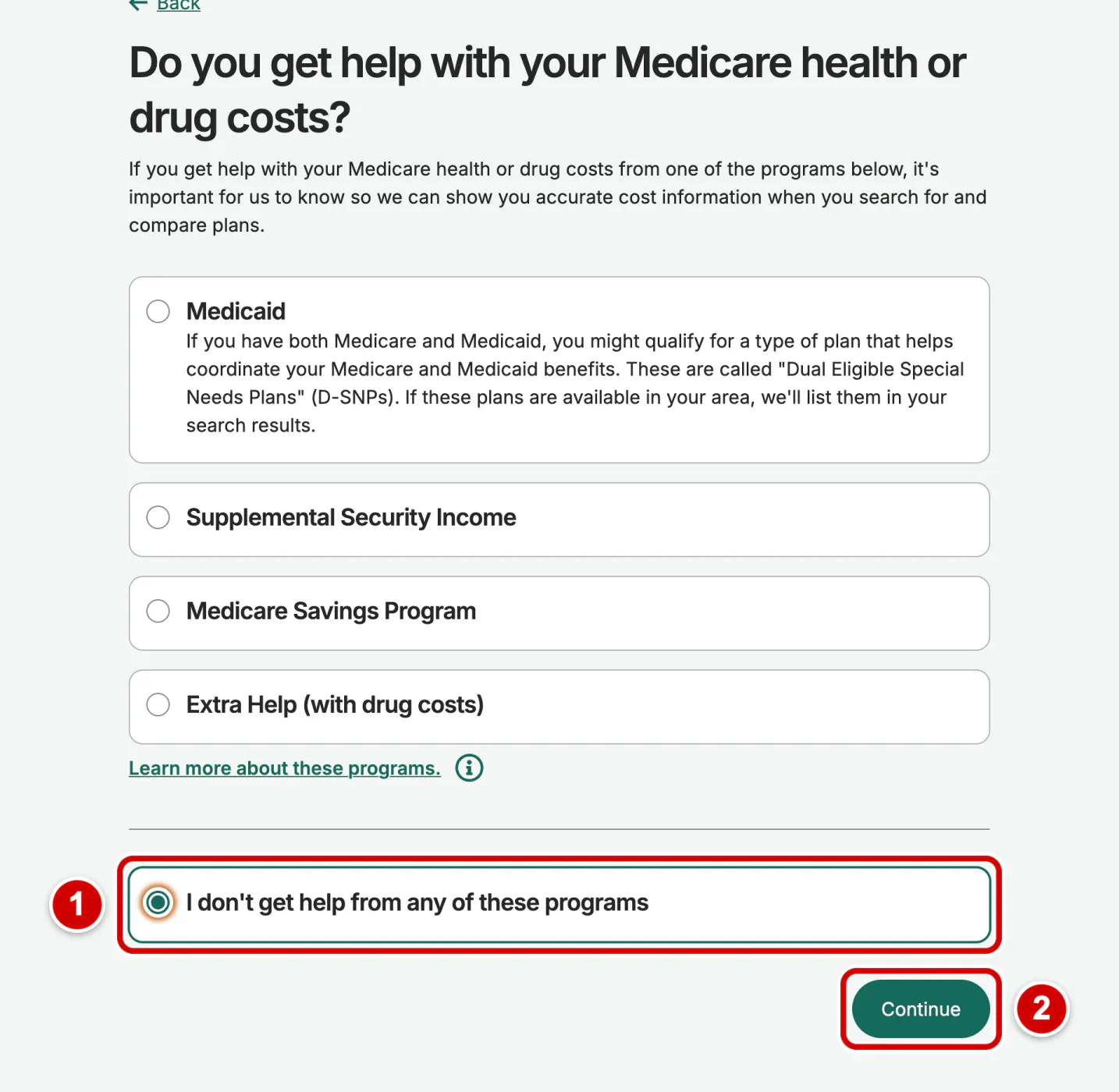
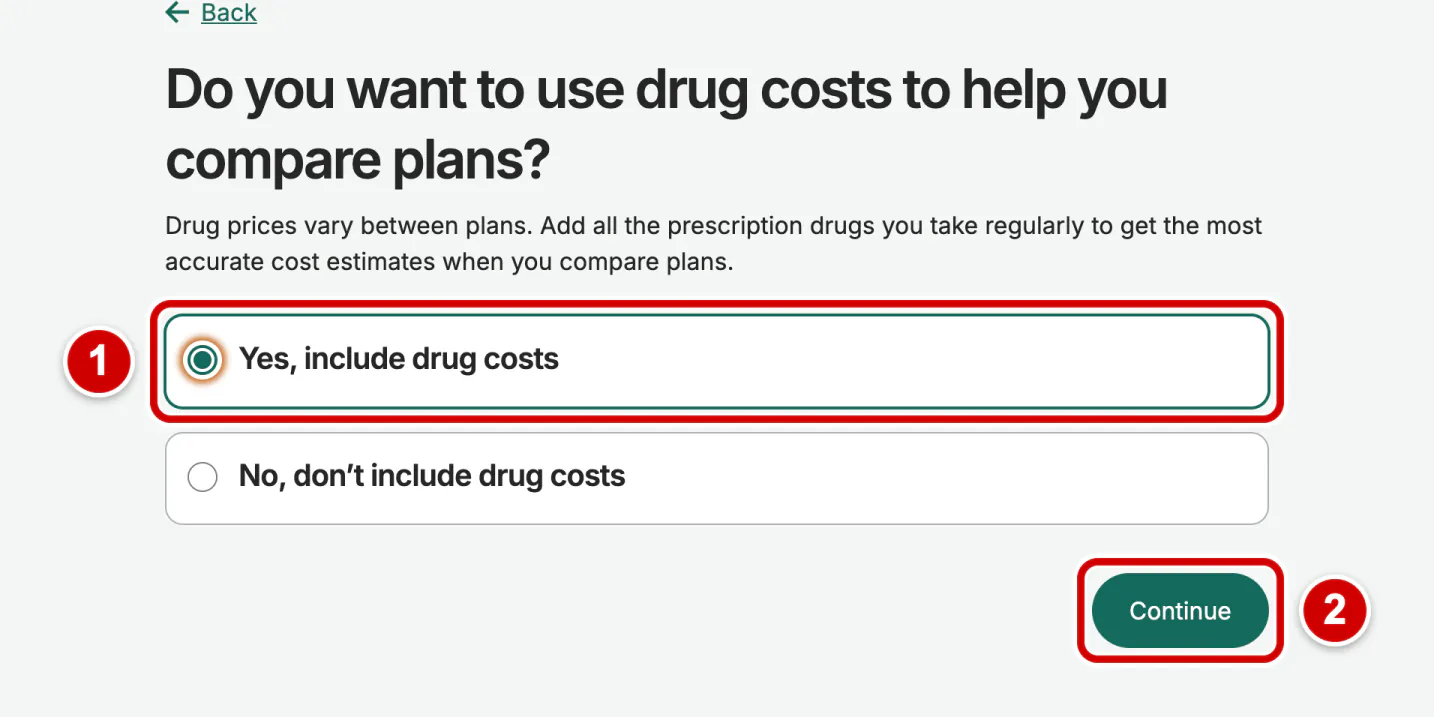
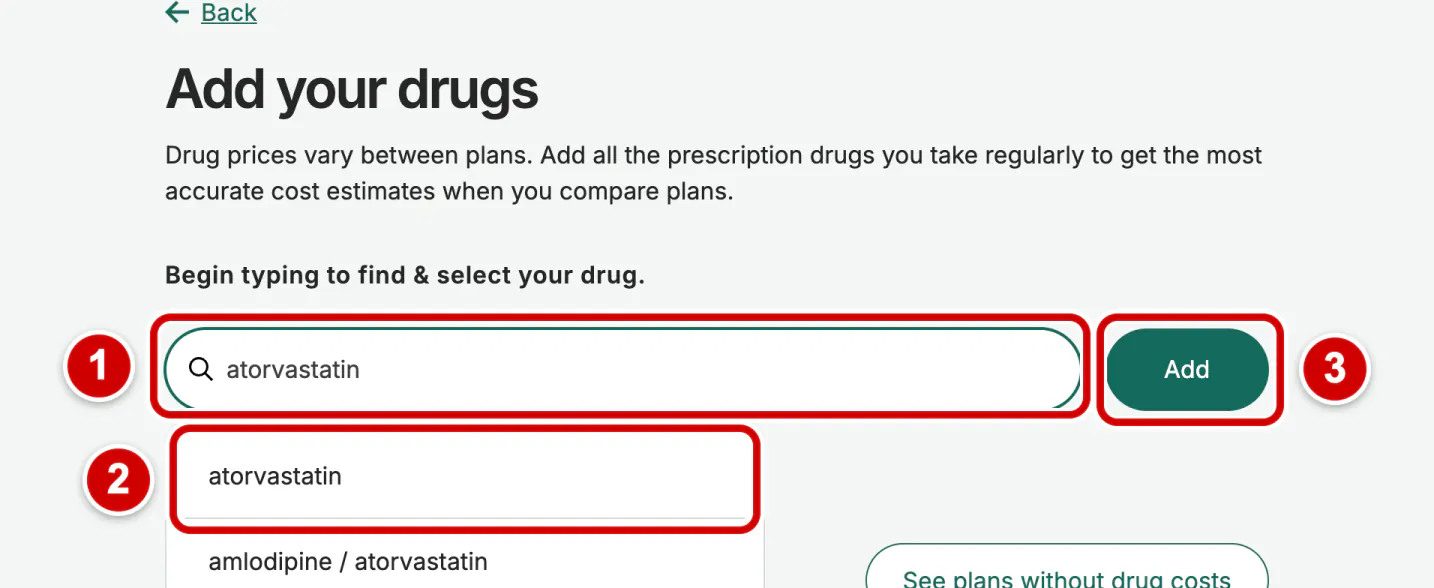
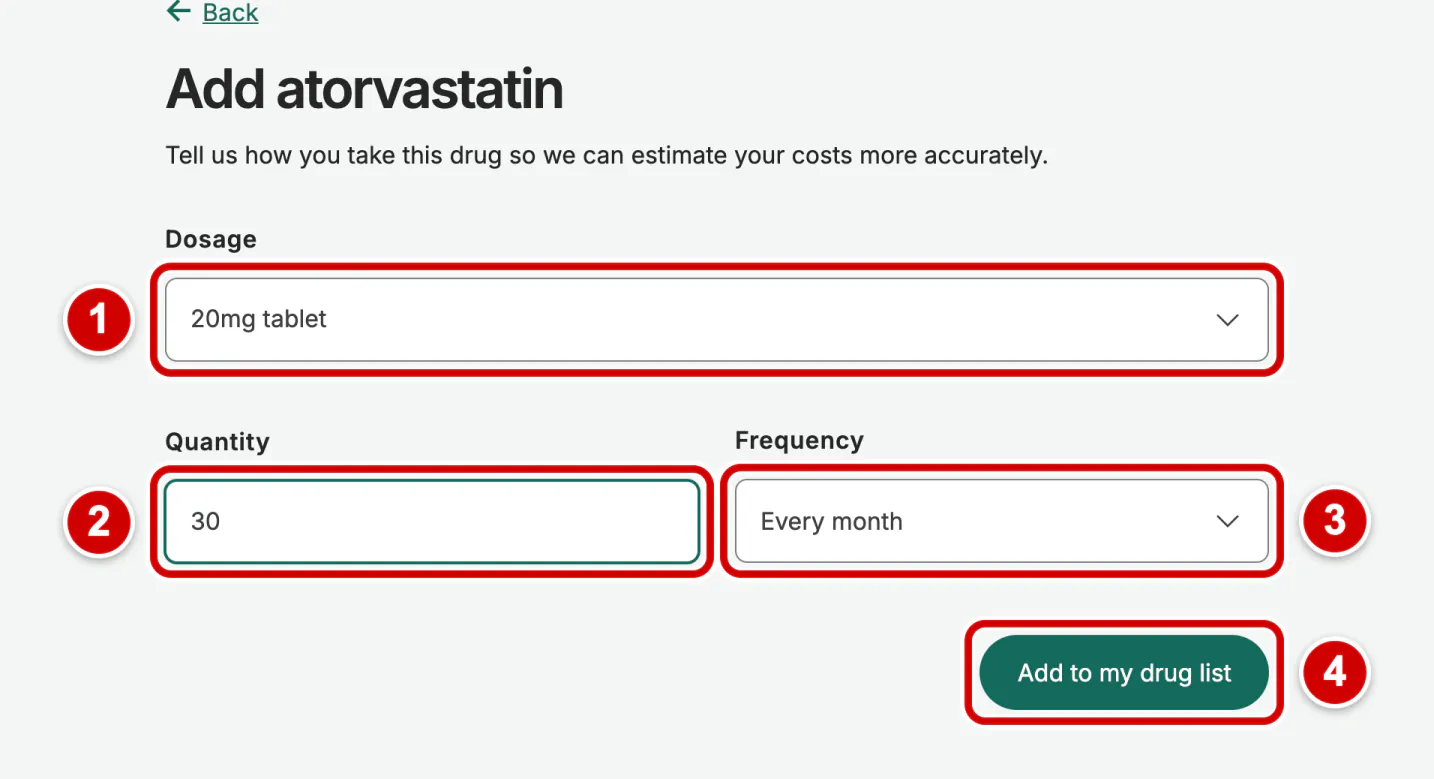
About the pictures: They show Medicare.gov's Plan Finder without logging in. The red boxes and numbers show where to click. We blurred the names of plans, companies and pharmacies, and all prices.
Tap or click a picture to see it bigger. Medicare.gov may look a little different when you visit.
-
Step 1: Open the Plan Finder
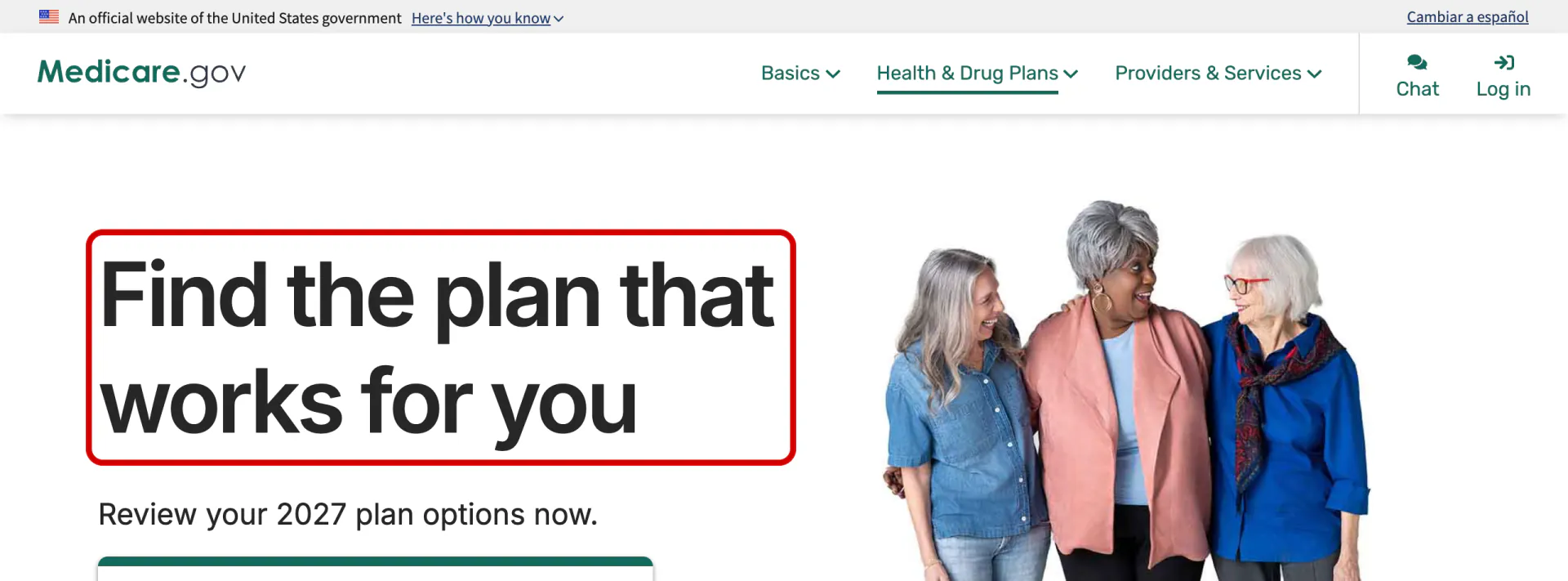
Click the button Open Medicare's Plan Finder above, or go toIn your browser, go to medicare.gov/plan-compare. You will see the page Find the plan that works for you.
-
Step 2: Go on without an account (or log in)
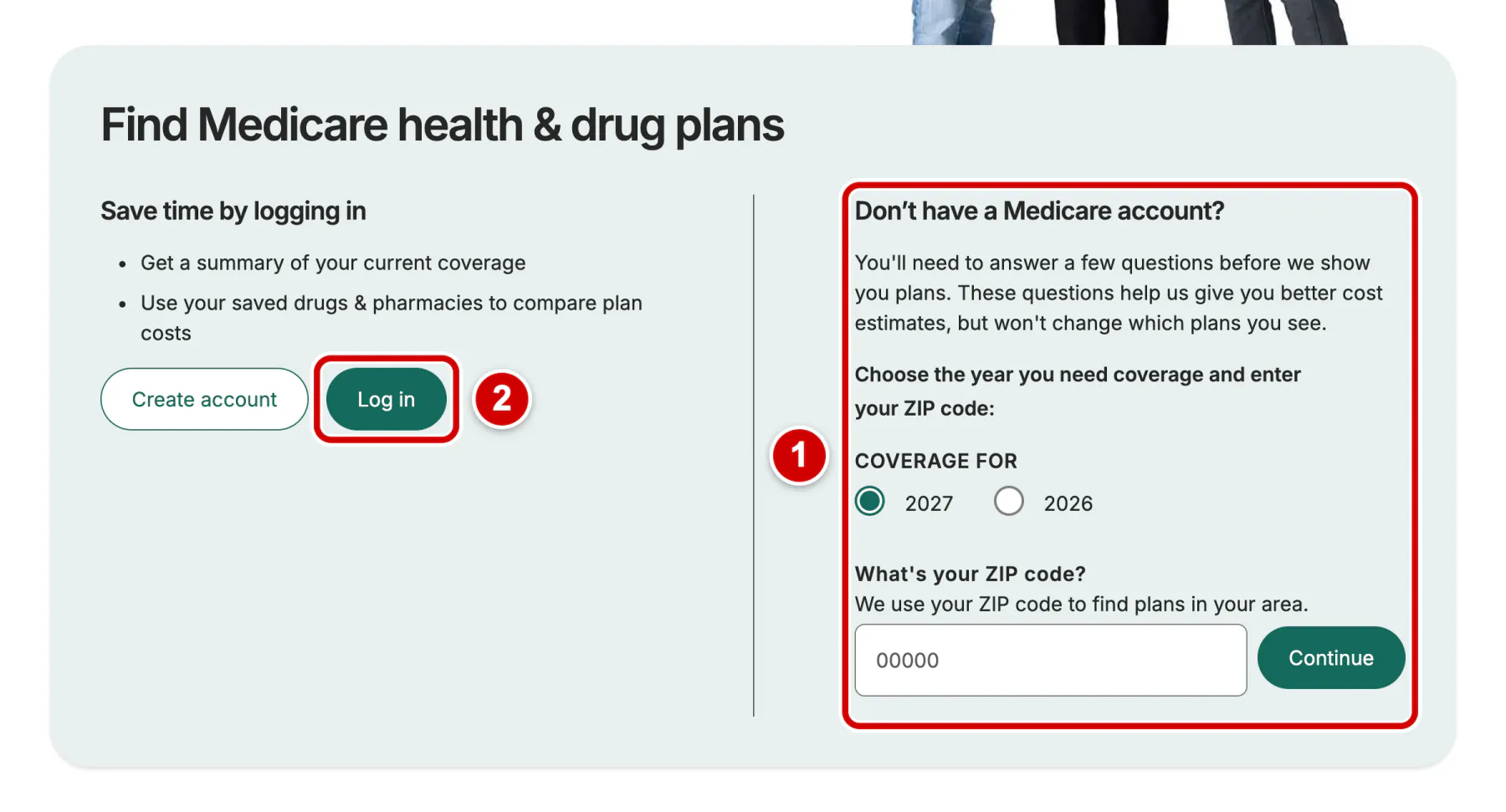
Scroll down to the box Find Medicare health & drug plans.
- Use the right side, Don’t have a Medicare account?, and go on to step 3. You do not need an account. The pictures in this guide show this way.
- If you already use your Medicare account, you can click Log in instead. The pages will then look different from these pictures.
-
Step 3: Enter your ZIP code
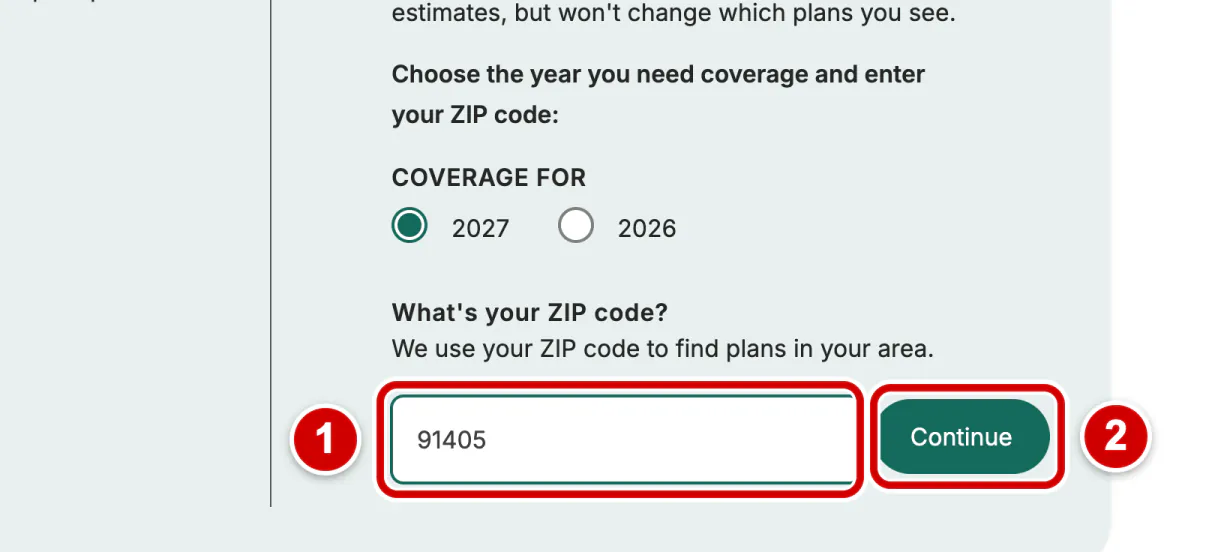
Under Coverage for, the year your new plan starts is already chosen. Leave it as it is.
- Type your ZIP code.
- Click Continue.
-
Step 4: Choose drug plans
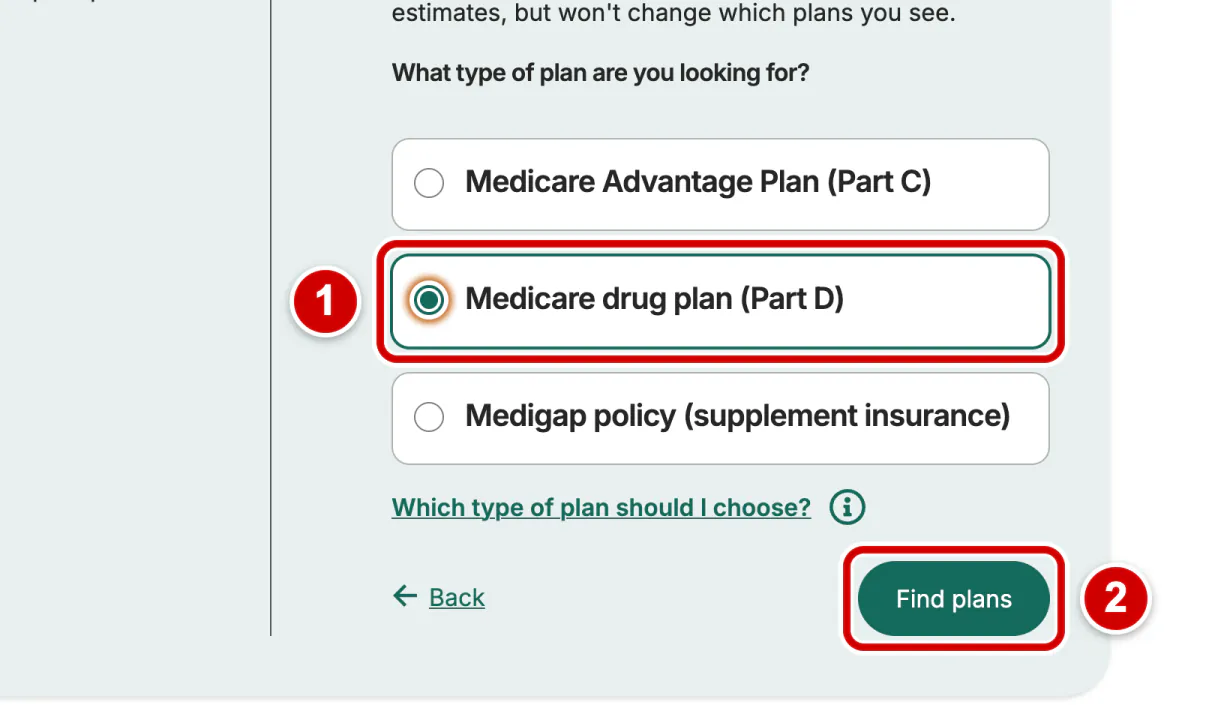
- Click Medicare drug plan (Part D).
- Click Find plans.
-
Step 5: Say if you get help paying
If you get help from one of the programs on the list, such as Medicaid (Medi-Cal in California) or Extra Help, click it. If not:
- Click I don't get help from any of these programs.
- Click Continue.
-
Step 6: Choose to see your drug costs
- Click Yes, include drug costs.
- Click Continue.
-
Step 7: Add your first drug
- Type the first letters of the drug's name, as it is written on the bottle.
- Click the right name in the list.
- Click Add.
-
Step 8: Enter the strength, the quantity and how often
The label on your pill bottle has all of this.
- Choose the Dosage: the strength, for example 20 mg.
- Type the Quantity: how many pills you get each time.
- Choose the Frequency: how often you get them.
- Click Add to my drug list.
-
Step 9: Add all your drugs
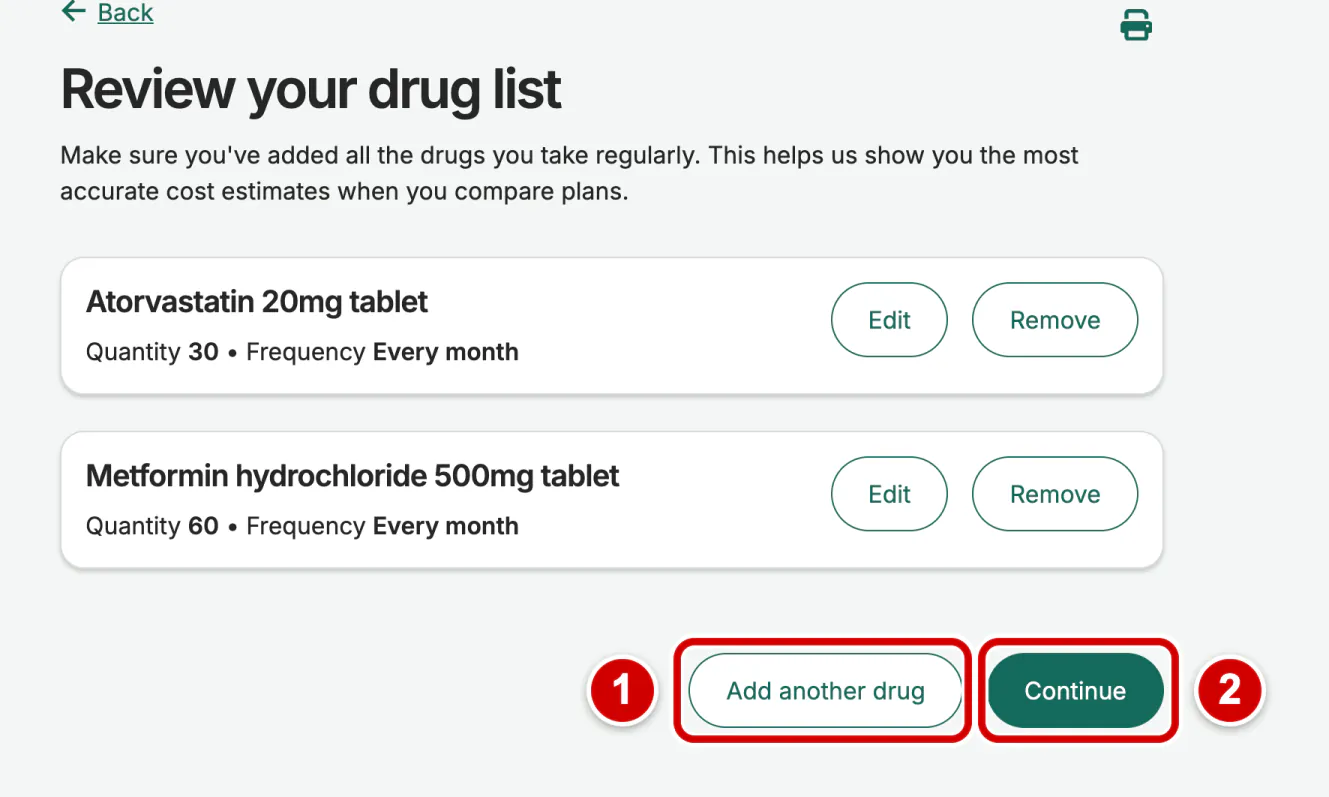
- Click Add another drug, and do steps 7 and 8 again for each drug you take.
- When all your drugs are on the list, click Continue.
-
Step 10: Choose your pharmacies
Drug prices can be different at each pharmacy.
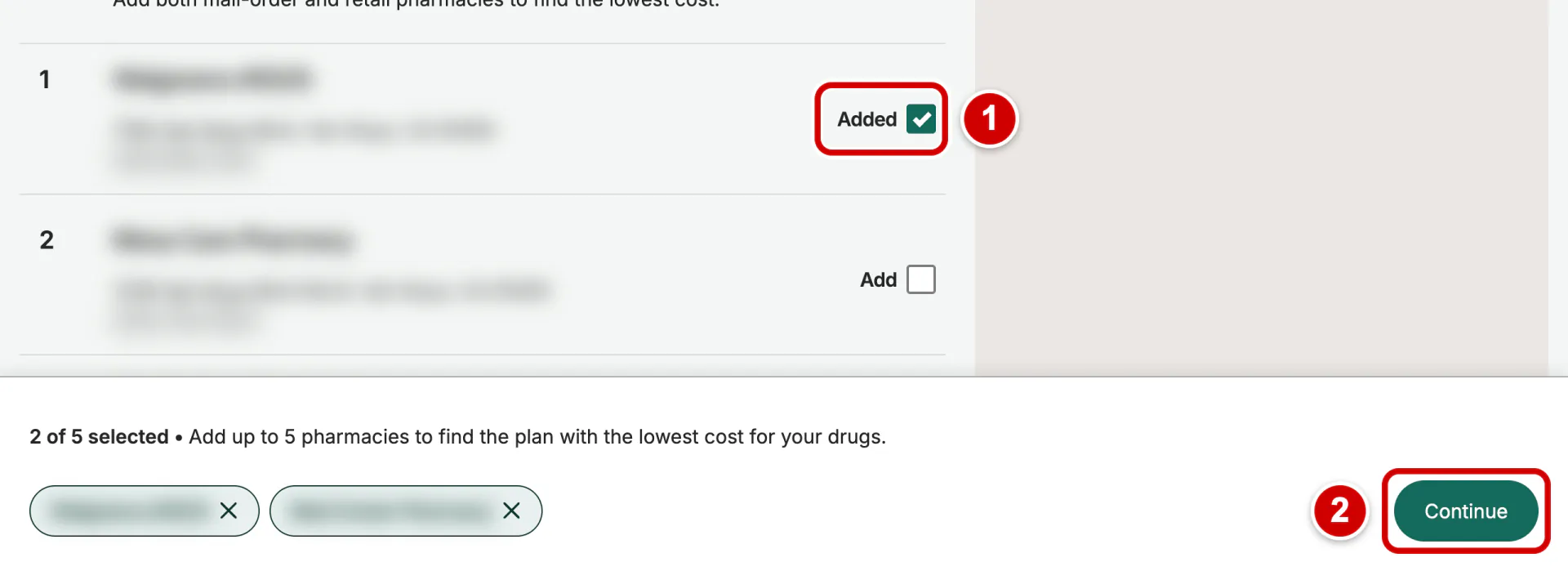
- Click Add next to the pharmacy you use. It then says Added. You can choose up to 5 pharmacies, and mail order too.
- Click Continue at the bottom of the screen.
Your pharmacy is not on the list? Type its name in the box Pharmacy name at the top of the page and click Find pharmacies.
-
Step 11: Look at the cost for the whole year
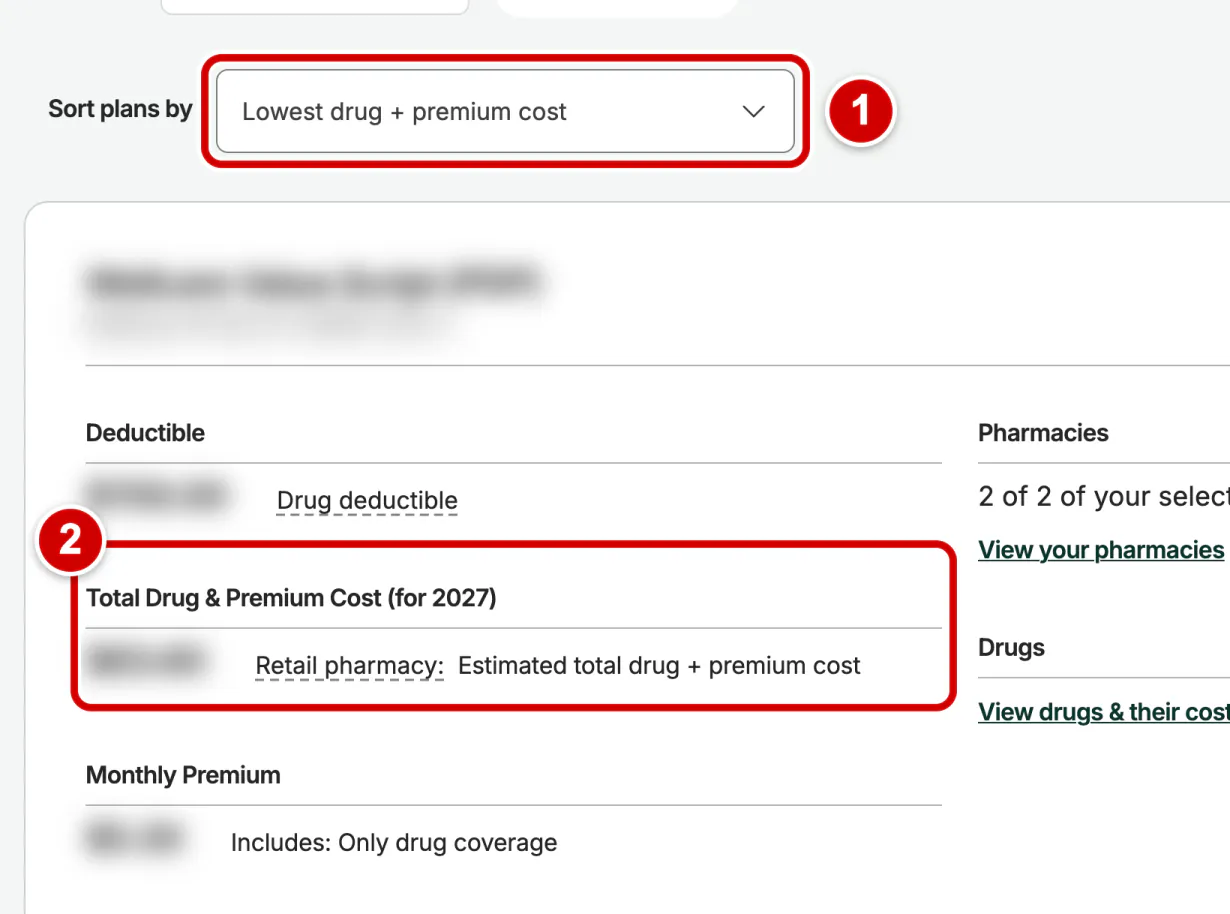
- Medicare lists the plans with the lowest cost first. Check that Sort plans by says Lowest drug + premium cost.
- Look at Total Drug & Premium Cost. This is about what you would pay in one year, for your drugs and the plan together. A low monthly premium alone does not mean a low cost.
-
Step 12: Choose up to 3 plans to compare
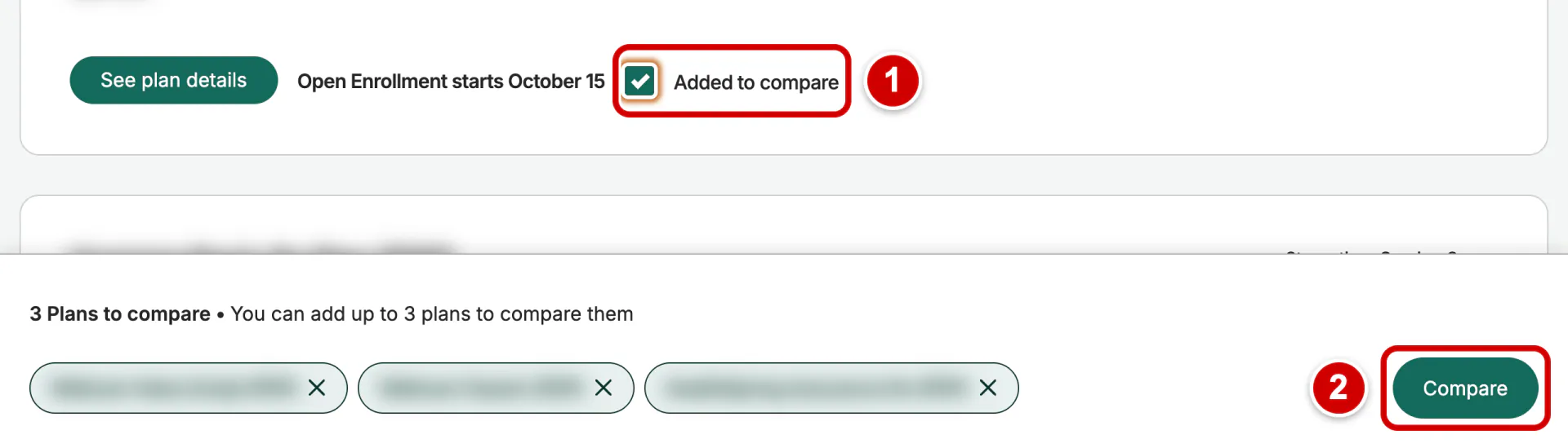
- Click Add to compare on up to 3 plans.
- Click Compare at the bottom of the screen.
-
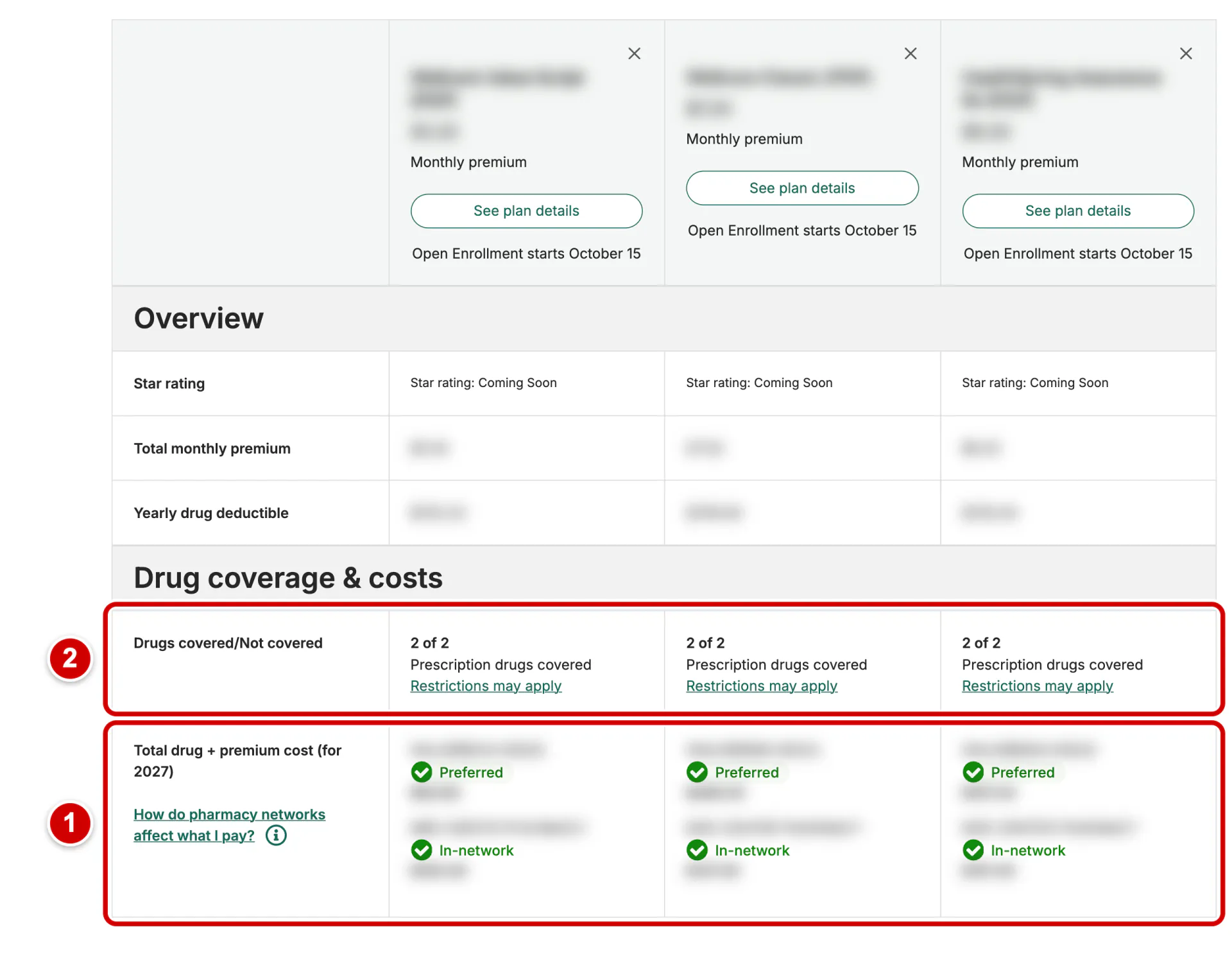
Step 13: Compare them side by side
- Look at the row Total drug + premium cost: each plan's cost for the year, at each of your pharmacies.
- Check the row Drugs covered/Not covered: all your drugs should be covered.
-
Step 14: Join the plan you chose
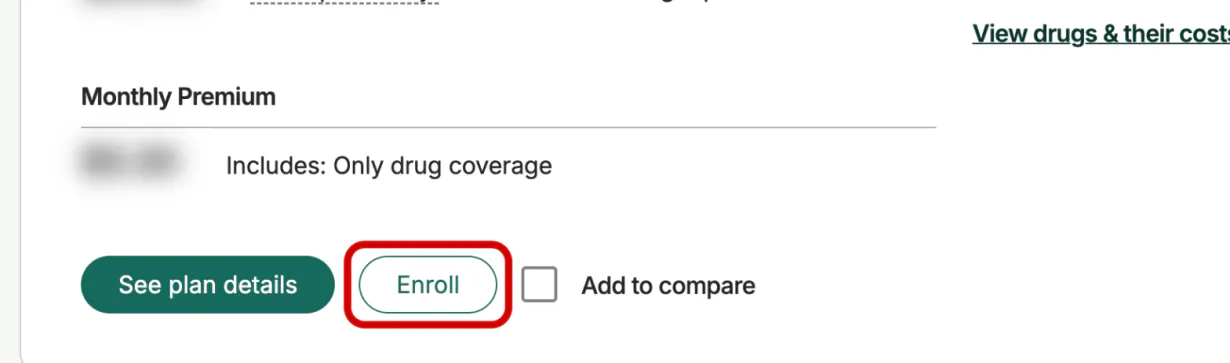
To read more about a plan, click See plan details. To join a plan, click Enroll on it (in the red box). You will need your Medicare card.
You do not have to cancel your old Part D drug plan. It ends when your new plan starts on January 1.
Would you rather have help?
Or call us
Monday - Friday: 9:00 AM - 5:00 PM PST
Stuck on a step? Call us. We will help you with Medicare's Plan Finder, at no cost to you. Have your Medicare card and your list of drugs ready.
Free Medicare counseling: HICAP
HICAP, the Health Insurance Counseling and Advocacy Program, is California's free Medicare counseling. Its counselors give unbiased help and sell no insurance.
Cover Health CA is not connected with or endorsed by the U.S. government or the federal Medicare program.
Currently, we represent 8 organizations that offer 74 products in your area. You can always contact Medicare.gov or 1-800-MEDICARE for help with plan choices.